How to use all 100 characters of your App Store keyword field
Apple gives you 100 characters of hidden keywords. Here are Apple's official rules, what wastes space, a worked before-and-after example, and a 5-step process to fill the field with words that can actually rank.
 By Alexander, maker of Storewatch · · 7 min read
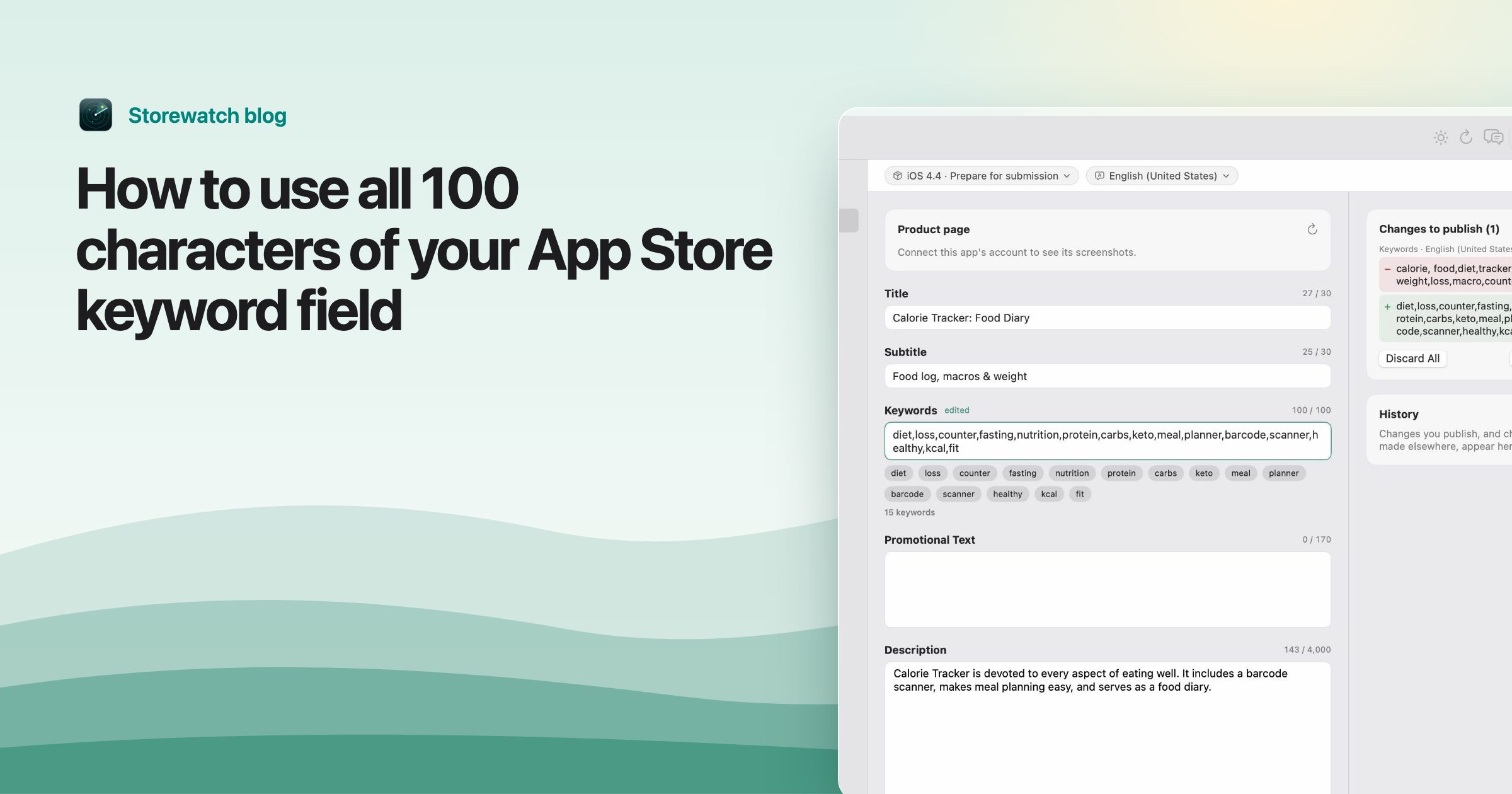
The keyword field is the only place in your App Store listing that nobody sees but Apple's search. It's 100 characters long, and on most indie apps I look at, including my own until recently, a good chunk of it is wasted: spaces after commas, words already in the app name, plurals of words already there.
Each wasted character is a word you could be found for. This guide covers Apple's official rules, the community advice that's widely used but not confirmed by Apple (clearly marked), and a step-by-step way to fill all 100 characters with keywords that can actually help.
What the keyword field is, and what else Apple indexes
When you prepare a version in App Store Connect, each language of your listing has a Keywords field. Customers never see it; it only feeds search. Apple's App Store search page says text relevance comes from your app name, subtitle, keywords and primary category, alongside signals like downloads, ratings and reviews. App Store Connect's field reference adds that your app name and company name are searchable too.
Two practical consequences:
- Everything in your name and subtitle is already indexed. Repeating those words in the keyword field spends characters for nothing.
- Promotional text and your description don't help search on the App Store. Apple says promotional text doesn't affect search, so don't rely on it for keywords.
Keywords are part of an app version, so you can only change them when you submit a new version. Plan keyword changes around your releases.
Apple's official rules
These come straight from Apple's product page guidance, the search page, the App Store Connect reference and the App Review Guidelines (section 2.3.7):
| Rule | Source |
|---|---|
Keywords are limited to 100 characters, separated by commas, without spaces after the commas. Spaces are fine inside a phrase, like Real Estate. | Product page guidance |
| Don't repeat words that are in your app name, subtitle or category. | Search page |
| Avoid plurals of words you already have in singular. Apple gives “climbs” and “climb” as duplicates. | Search and product page guidance |
| Don't add the word “app” or category names. | Product page guidance |
| Avoid special characters unless they're part of your brand. | Product page guidance |
| Each keyword should be longer than two characters. | App Store Connect reference |
| Names of other apps or companies aren't allowed, and keywords must describe your app accurately. Apple may change inappropriate keywords at any time. | App Store Connect reference; Guideline 2.3.7 |
Apple also warns that improper use of keywords is a common reason for rejections. Competitor names are the classic mistake.
100 characters or 100 bytes?
Apple's product page guidance says 100 characters; the App Store Connect field reference says 100 bytes. For English and other languages written in plain Latin letters, it's the same thing. For accented letters, Japanese, Chinese, Korean, Arabic and other scripts, a single character can take several bytes, so you may fit fewer words than you expect. The counter in App Store Connect is the final word: if it accepts your text, it fits.
Commas, spaces and phrases
The single easiest win: delete every space after a comma. calorie, food uses one more character than calorie,food, and that adds up quickly across a dozen keywords.
Should you write phrases (calorie counter) or single words (calorie,counter)? Apple's own example uses phrases. The common ASO advice, widely observed but not documented by Apple, is that the search algorithm combines single words from your keywords, name and subtitle into phrases, so single words give you more combinations for the same characters. In practice, most developers use mostly single words, and phrases only where the words only make sense together.
Singular or plural?
For English, Apple treats plurals as duplicates, so use the singular and save the characters. For other languages, plural forms can be quite different words, and the ASO community's advice is mixed. If a plural looks like a different word in that language, or competitors clearly rank for it, it can be worth testing.
What not to spend characters on
- Words already in your app name or subtitle.
- Your category name, and the words app or iPhone.
- Free, best and new. They're vague, and community testing suggests they rarely help.
- Small connecting words like the, and or for, which are widely believed to be ignored.
- Plurals of English words you already have.
- Competitor or brand names. Against the rules, and a rejection risk.
A real before and after
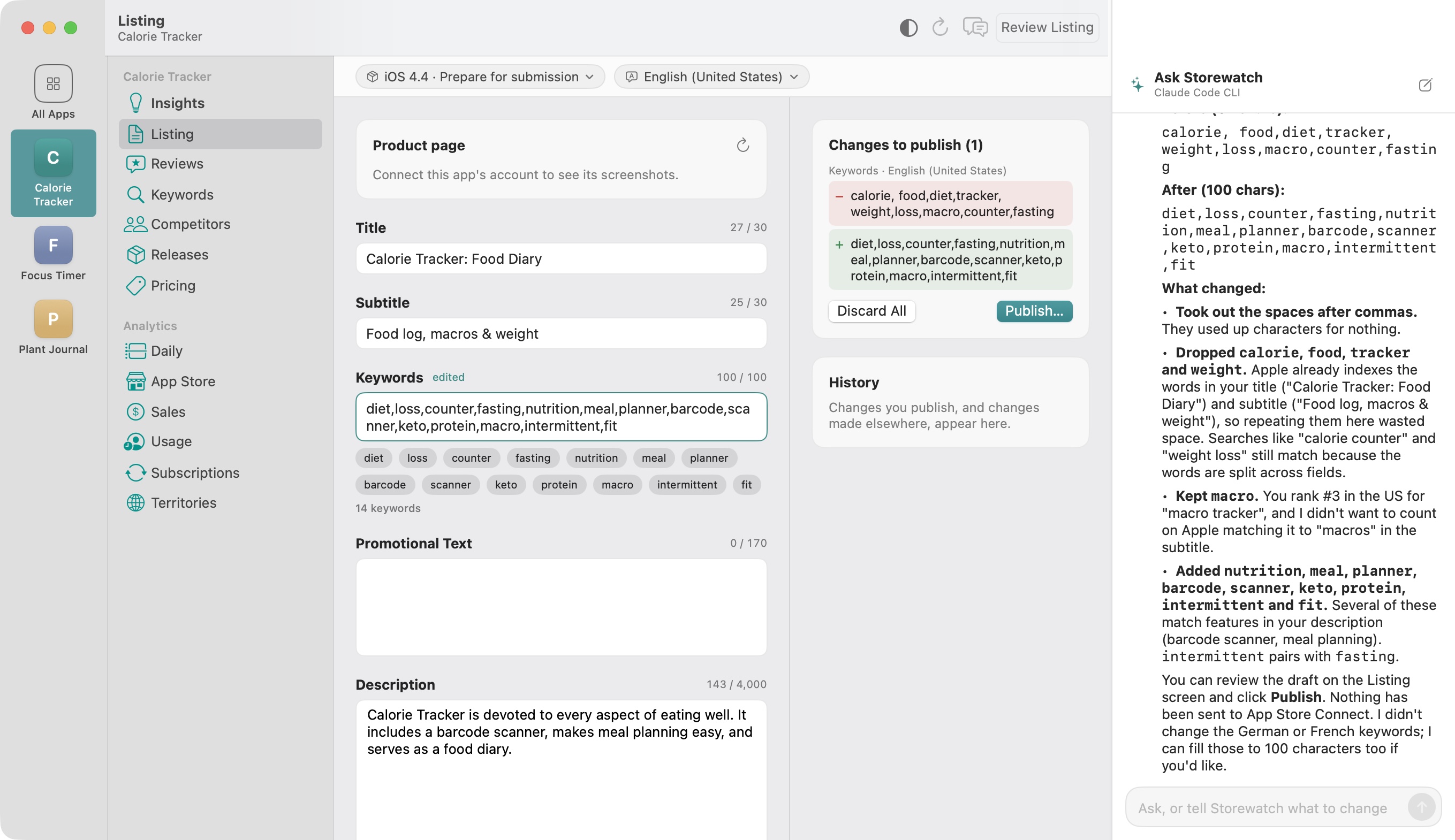
Here's the example from Storewatch's sample app, a calorie tracker called Calorie Tracker: Food Diary with the subtitle Food log, macros & weight. Its original keyword field:
Three problems: spaces after two commas, five words that already appear in the name or subtitle (calorie, food, tracker, weight, macro), and 39 characters left unused. After the cleanup:
Same app, no rule broken, six more searchable words, and every one of them describes something the app actually does: it has a barcode scanner and a meal planner, so barcode, scanner, meal and planner earn their place.
A 5-step process to fill the field
1. List every candidate
Write down every word a person might type to find an app like yours: features, problems it solves, the outcome they want. Look at your own reviews for the words real users use. Include synonyms and abbreviations people actually type, like kcal.
2. Remove what's already indexed
Cross out every word in your app name, subtitle and category, plus plurals of English words already on the list.
3. Check popularity and difficulty
Apple's Search Ads tools show popularity for search terms, and ASO tools estimate difficulty. Small apps tend to do better with specific, moderately popular words than with the single most popular term in the category.
4. Pack it
Join the words with commas, no spaces. If you're over 100 characters, cut the weakest; if you're under, add the next best candidate. A short script or a spreadsheet LEN() formula helps.
5. Verify and ship
Paste it into App Store Connect and check the counter, then submit it with your next version. Note the date, so you can compare rankings before and after.
Extra keyword space from other languages
Apple's guide to localizing app information confirms that keywords are set per language, and that customers can find your app with a language's keywords in the countries where the App Store supports that language. Translating your keywords properly into each language you support is the official, safe way to reach more people.
Many ASO practitioners go further and report that some storefronts also index extra languages, for example Spanish (Mexico) keywords helping in the United States. This is a popular tactic, but Apple doesn't publish which extra languages each storefront uses, and sources disagree about the details. If you try it, keep the keywords relevant to people who'd search in that language, change one thing at a time, and watch your rankings.
How to tell whether it worked
Keyword changes take time. Track the ranks of your target keywords for a few weeks before and after the release, in the countries you care about. Expect movement over days, not hours, and remember that downloads and ratings affect rankings too, so a release that also fixes a bad bug can move things on its own.
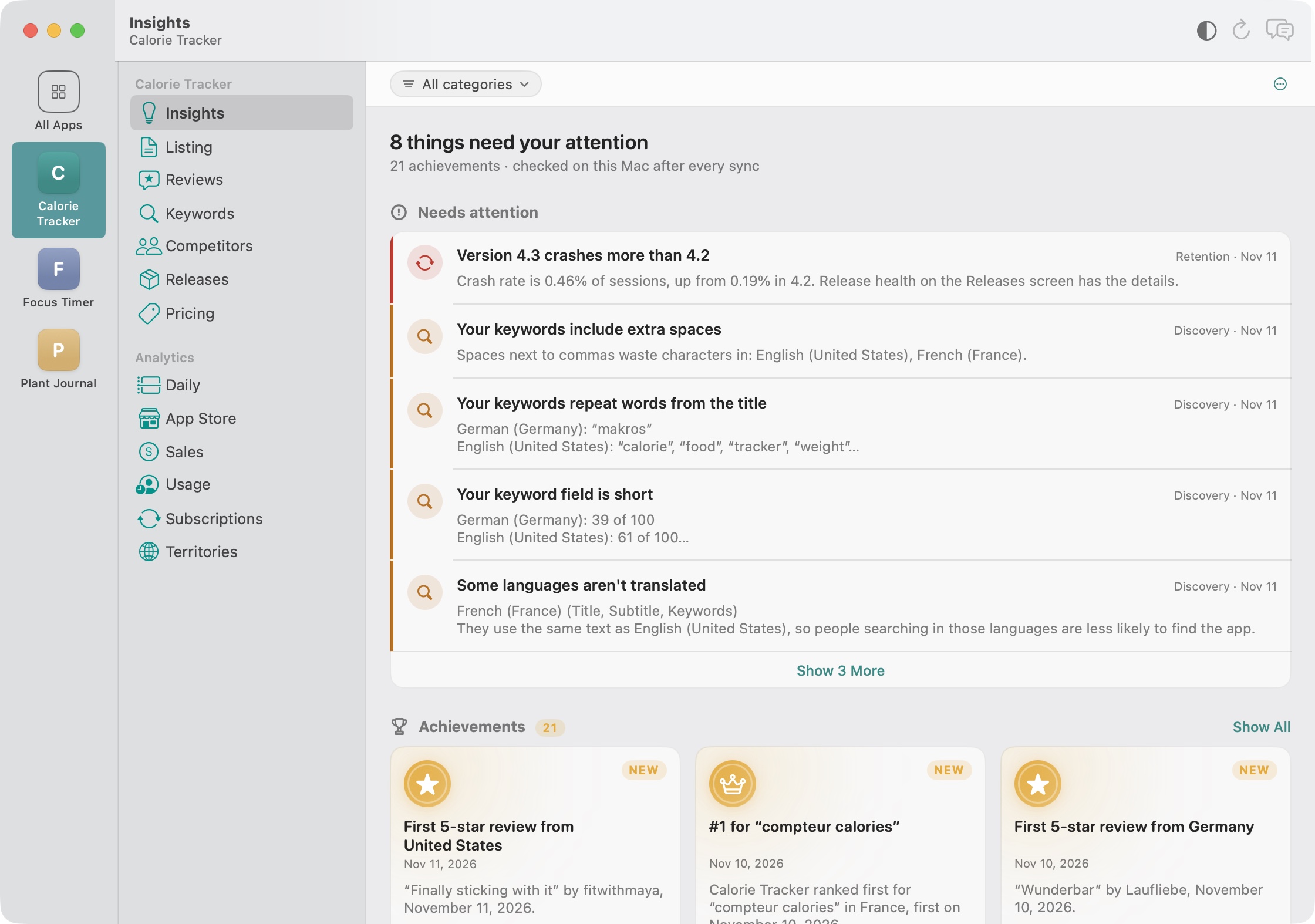
This is the part I automated for myself. Storewatch checks the keyword field in every language of every app for spaces, repeated words and unused characters, tracks daily ranks for your keywords in each country, and can draft a fuller keyword field with the AI you already use. Nothing is published until you review it.
Common mistakes
- Leaving 20 or more characters unused because the field “looks full enough”.
- Spaces after commas.
- Repeating the app name in the keywords.
- Adding competitor names and getting rejected.
- Changing keywords, name and screenshots in the same release, then not knowing which change helped.
- Copying English keywords into other languages instead of translating them for how people actually search there.
Frequently asked questions
Do spaces after commas count toward the 100 characters?
Yes. Every space counts, and Apple's guidance is to separate keywords with commas and no spaces. Spaces inside a phrase, like “real estate”, are fine.
Should I use singular or plural keywords?
In English, use the singular. Apple treats plurals of words you already have as duplicates. In other languages, plurals can be different words, so it can be worth testing.
Do I need to repeat words from my app name and subtitle?
No. Apple already indexes your app name and subtitle and recommends not repeating those words in the keyword field.
Can I use competitor names as keywords?
No. App Store Connect doesn't allow names of other apps or companies, and Guideline 2.3.7 forbids using trademarked terms or popular app names in metadata. It's a common reason for rejection.
Is the limit 100 characters or 100 bytes?
Apple's documentation mentions both. For plain Latin letters they're the same; for other scripts you may fit fewer characters. Trust the counter in App Store Connect.
How often can I change my keywords?
Keywords belong to an app version, so you change them when you submit a new version. Many developers revisit them every release or every few weeks.