App Store keyword research: a step-by-step guide
How to do App Store keyword research: find ideas, judge popularity, difficulty and relevance, research each country, and place keywords in the title, subtitle and keyword field.
 By Alexander, maker of Storewatch · · 8 min read
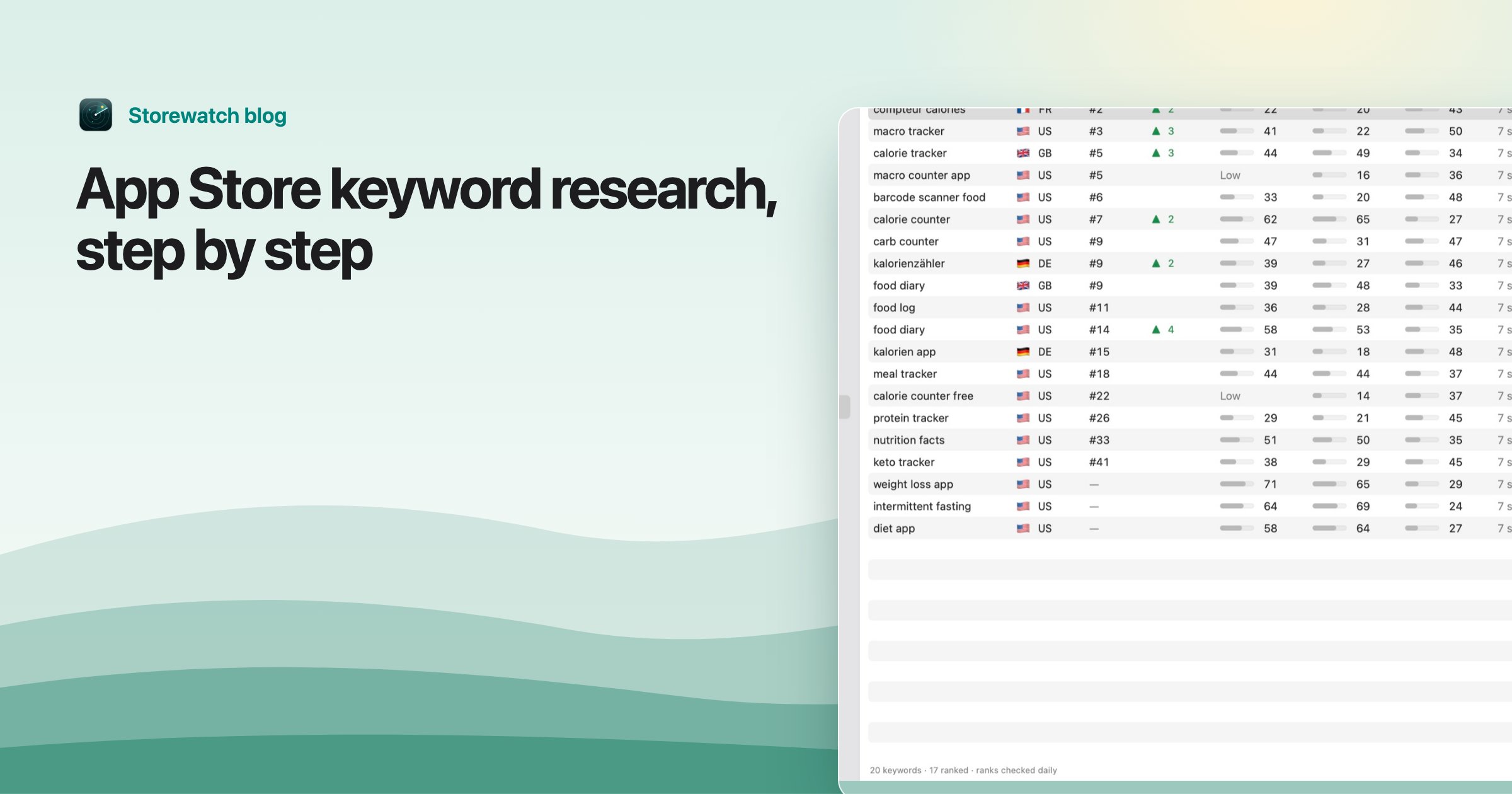
App Store keyword research is a loop of four steps: collect ideas, score each one for popularity, difficulty and relevance, put the winners in your title, subtitle and keyword field, then check your rank and repeat. You can do all of it for free. A paid tool mostly saves time and fills in numbers Apple doesn't show you.
This guide walks through each step in the order I do it for my own apps. It ends with a worked example for a made-up app, so you can see what a decision looks like.
How App Store search uses your keywords
Three fields of your listing feed App Store search: the app name, the subtitle and the keyword field. Apple's platform version information reference says the keyword field takes up to 100 bytes, each keyword has to be longer than two characters, and you shouldn't repeat your app name or add other companies' names. (For plain English text, 100 bytes is 100 characters. Accented and non-Latin characters can take more.) Name and subtitle are 30 characters each; see App Store character limits for every field.
That is not much room, so every word has to earn its place. Keyword research is how you decide which words those are.
Step 1: Collect keyword ideas
Start wide. You are not judging anything yet, just building a list of 50 to 200 phrases people might type.
- Your own listing. Read your title, subtitle, keyword field and the words your description repeats. These are what you already target.
- Competitors' titles and subtitles. Search the App Store for the main thing your app does, and read the name and subtitle of the top 10 results. Note which phrases several of them share: those are phrases the apps in your space have bet on.
- App Store search suggestions. Type a word into the App Store search box and see what it suggests as you type, in the country you care about. Try the letters of the alphabet after your word too. The suggestions come from what people really search.
- Apple Ads keyword suggestions. Apple Ads has a keyword suggestion tool that shows a popularity indicator for each keyword. See the next step.
- Reviews and support emails. People describe your app in their own words. A phrase a reviewer uses is often a phrase a searcher uses.
Prefer phrases of two or three words ("habit tracker", "dog walking log") over single words. Single words like "tracker" are usually dominated by big apps, and a phrase gives you a shot at a narrower search.
Step 2: Check popularity, difficulty and relevance
Every idea gets three questions.
| Question | Where the answer comes from |
|---|---|
| Popularity: do people search for it? | Apple Ads search popularity |
| Difficulty: can an app like yours reach the top? | Look at who ranks, or use a tool's estimate |
| Relevance: would the searcher want your app? | Your own judgment |
Popularity: Apple's own number, from a free account
Apple doesn't publish search volumes in App Store Connect. The one demand signal it does expose is search popularity in Apple Ads. Apple's help says it is based on App Store searches and displayed from 1 to 5, with 5 the most popular. You find it in the keyword suggestion tool inside an Apple Ads account.
You don't have to run ads to look. Apple says its Advanced product has no minimum spend and charges only when someone taps an ad. A tool can also read popularity through the Apple Ads API, which returns a finer number than the five dots (Storewatch shows 1 to 100). Treat any popularity as relative: it says "more searched than that", not "this many searches a month". Apple doesn't publish how the score is calculated.
A keyword Apple doesn't list can still be worth a slot if it is highly relevant. Treat it as low popularity and decide on relevance.
Difficulty: look at who is on top
Apple publishes no difficulty score, so this one is always an estimate. The manual way: search the keyword, then check the top 10. Are they apps with tens of thousands of ratings, or apps with a few hundred? Do they have the phrase in their name or subtitle? If the top is full of big apps with the exact phrase in the title, you are unlikely to join them with a keyword-field entry alone.
Tools turn the same signals (ratings, stars, whether the phrase is in the name, how crowded the search is) into a number. Different tools weigh them differently, so compare keywords within one tool, not across tools.
Relevance: the filter that saves you
A popular keyword that doesn't describe your app brings people who open it, shrug and leave. That hurts conversion and can only lose you reviews. Be honest: if you wouldn't be happy to receive that searcher, drop the keyword however popular it is.
Then sort: relevant, searched, winnable keywords first. High popularity with brutal difficulty is a long-term goal. Modest popularity with easy difficulty is where small apps usually get their first rankings.
Step 3: Research each country separately
The App Store has a separate search in every country, and people search in their own language. A keyword that is popular in the US may not be in the UK, and an English phrase may be useless in Germany. So research per country, at least for the countries that send you the most downloads.
Apple lets you localize your listing's text, including the keyword field, per language. Apple's localization help says users can search with localized keywords in every country where the App Store supports that language. Its App Store localizations reference lists, for each country, a default language and additional supported languages. For the United States, as of November 2026, it lists English (US) as the default, plus Arabic, Chinese (Simplified), Chinese (Traditional), French, Korean, Portuguese (Brazil), Russian, Spanish (Mexico) and Vietnamese. Canada lists English (Canada) with French (Canada), and Japan lists Japanese with English (US).
That table tells you which languages the storefront supports. It does not say, for each additional language, exactly how that text is used in search, so I won't claim more than Apple does. If you rely on an additional language, test it: add the localization, wait for the version to go live, then search for a phrase from that field in that country and see whether your app appears.
A practical order: first the countries that already send you downloads, then the ones where you have ranks but no listing in the local language. Write local keywords yourself or with a native speaker; direct translation of an English keyword often isn't what people type.
Step 4: Put keywords in the right fields
- Title (30 characters). Your brand plus the one or two phrases that describe the app best. It is the most visible text, so use it for the keyword you most want to own.
- Subtitle (30 characters). A readable line that carries one or two more phrases. Don't repeat words from the title; they don't add anything.
- Keyword field (100 bytes). Everything else: comma-separated, no spaces after commas, no words already in the title or subtitle, no plurals of words you've used. The details are in How to use all 100 characters of your keyword field.
ASO practitioners widely report that the App Store combines words from the three fields, so "habit" in the title and "tracker" in the keyword field can still match a search for "habit tracker". Apple doesn't document this, so treat it as common practice and check your own ranks. It is also why you don't repeat a word across fields: a repeat wastes characters that could hold a new word.
Step 5: Track ranks and iterate
After a new version goes live, track where you rank for each keyword in each country, every day. Rankings can take a while to settle, so compare the same keywords a week or two apart. Keep only the changes that help: if a keyword hasn't moved you into the top 30 after a couple of releases, swap it for the next idea on your list.
One trap: where the rank comes from. Many free checkers use Apple's public iTunes Search API, which can disagree with what people see in the App Store. I compared them in Your keyword ranks are probably wrong. Whichever tool you use, check a few ranks by hand.
Worked example (made-up app)
Example only: "Pawlog" is an invented dog-walking tracker, and every number below is made up to show the reasoning. It is not real data.
Ideas gathered: dog walk tracker, dog walking log, pet tracker, walk timer, dog, puppy schedule, pet care reminders, hiking tracker.
| Keyword | Popularity (1 to 5) | Difficulty | Relevant? | Decision |
|---|---|---|---|---|
| dog | 5 | Very hard | Too broad | Skip |
| pet tracker | 4 | Hard | Partly (GPS collars) | Skip |
| dog walk tracker | 3 | Medium | Yes | Title |
| dog walking log | 2 | Easy | Yes | Subtitle |
| puppy schedule | 2 | Easy | Yes | Keyword field |
| hiking tracker | 4 | Hard | No | Drop |
Result: the title is "Pawlog: Dog Walk Tracker" (24 characters), the subtitle is "Walking log and pet care" (24), and the keyword field gets puppy,schedule,reminders,timer,steps,routine and so on, with no word already used in the title or subtitle. "Dog" and "walk" are matched from the title, so they are left out of the keyword field.
The two choices to notice: "pet tracker" is popular but mostly wants GPS collars, so it is dropped on relevance. "Dog walking log" is less searched but easy, so it gets a visible slot.
Where Storewatch helps
Storewatch is our Mac app, and it covers these steps for your own apps. The Discover tab suggests ideas from your own listing, App Store suggestions in each country, Apple's top searches in your category (with Apple Ads connected) and the words top competitors share. Tracked keywords show Apple's search popularity (read from a free Apple Ads account; Storewatch never creates or changes campaigns), an estimated difficulty and an Opportunity score. Ranks come from the App Store's own search in each country. The Audit scores each country from 0 to 100 and lists what to fix first.
It doesn't give you search volumes or other companies' download numbers, and difficulty and Opportunity are Storewatch's estimates, labeled as such. The manual process above works without it.
Frequently asked questions
How do I do ASO keyword research for free?
Collect ideas from your listing, competitors' titles and subtitles, and the App Store's search suggestions. Open a free Apple Ads account to see search popularity in its keyword suggestion tool. Judge difficulty by looking at the top 10 results, and check your ranks by searching.
How many keywords should I target?
As many as fit in the three fields, without repeating words. Quality matters more than count, since a keyword you can't rank for is wasted space.
Does the App Store show keyword search volume?
No. App Store Connect doesn't show how many people search for a keyword. Apple Ads shows a relative search popularity, from 1 to 5 in its interface. Any "monthly searches" figure you see elsewhere is an estimate, not an Apple number.
Do keywords in other languages help?
Apple says users can search with localized keywords in every country where the App Store supports that language, and its localizations reference lists the additional languages each country supports. Test any additional language by searching for it in that country, because Apple doesn't spell out the search details per field.
How often should I change my keywords?
Each time you submit a version, at most. Give a change one to two weeks to settle, and judge it by rank movement and impressions, not by a single day.