ASO checklist: 18 steps from keywords to App Review
A step-by-step ASO checklist: keywords, name, subtitle, screenshots, ratings and localization, then Apple's metadata rules so the listing also gets approved.
 By Alexander, maker of Storewatch · · Updated November 22, 2026 · 11 min read
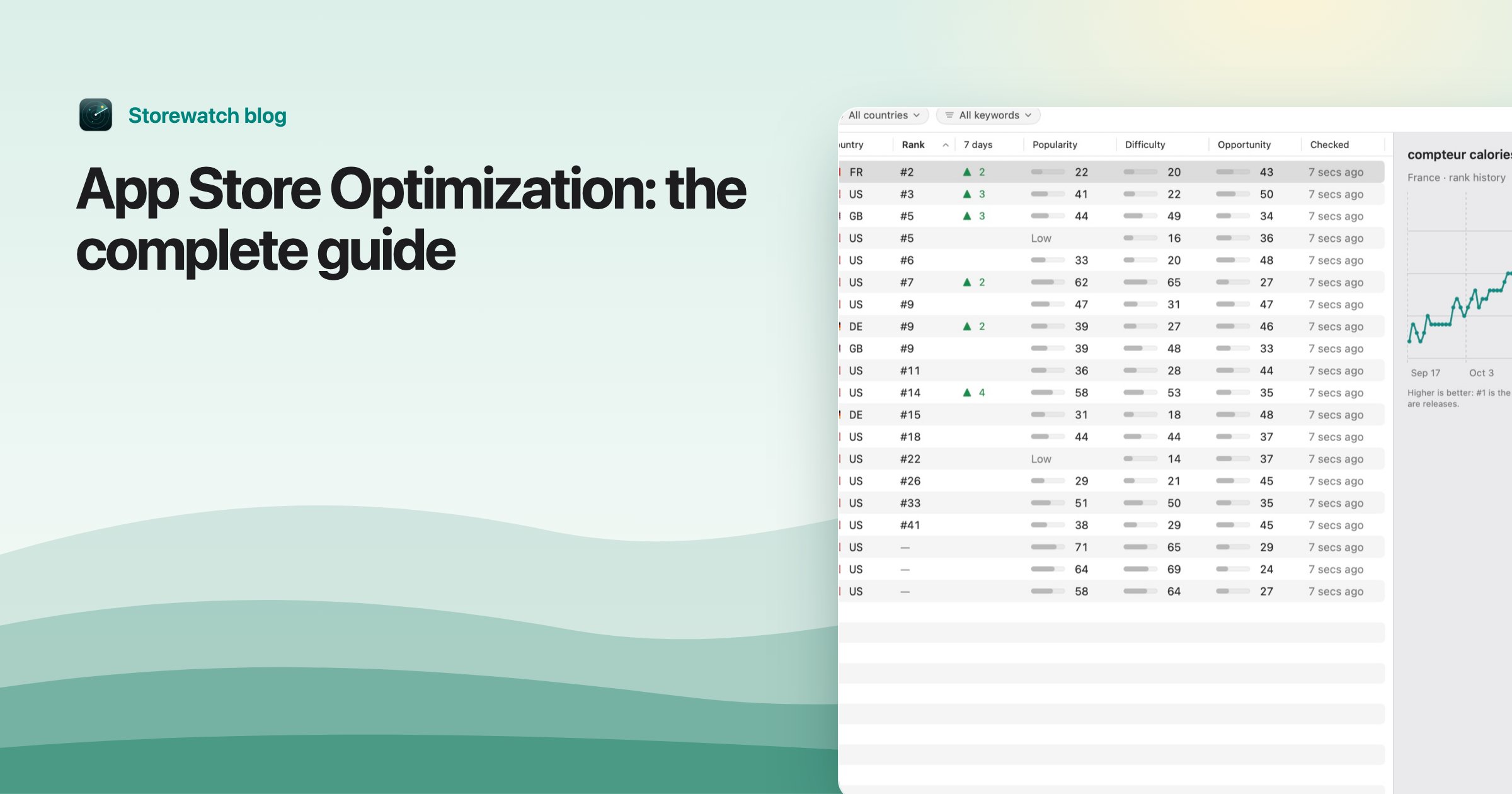
An ASO checklist is a short list of things to check on your App Store page, in the order that makes each one count: category and keywords first, then name, subtitle and keyword field, then the product page, then localization. Most checklists stop there. This one adds the step that decides whether any of it goes live: Apple's App Review rules for metadata, then tracking. The 18 steps below each say what to do, what Apple says about it, and what Storewatch checks for you automatically if you use it.
This is the working version of our guide to App Store optimization, which explains what ASO is and what the levers are. Here you tick boxes: tick a step and this page remembers it in your browser. Apple's rules are linked, and current as of November 2026. You can do every step by hand; the Storewatch notes only say which ones a tool can check for you.
Part 1: Before you write anything
Step 1. Pick the primary category on purpose
Apple's App Store search page says your primary category, and an optional secondary one, are indexed by search. Choose the category people would browse for your app, not the one that looks least crowded.
Storewatch checks: nothing here. A category is a judgment call, and it's one of the few things the tool leaves to you.
Step 2. Build a keyword list, per country
Collect 30 to 50 phrases from your own listing, competitors' titles and subtitles, and what the App Store suggests as you type. Prefer phrases of two or three words. Do it per country, because people search in their own language. The full method is in App Store keyword research.
Storewatch checks: its Discover tab builds the list from four sources, with Apple's popularity (through a free Apple Ads account), an estimated difficulty and an Opportunity score. See the keyword research tool.
Step 3. Write down where you rank today
Before you change anything, note your rank for each keyword in each country. Without a baseline you can't tell later whether a change helped. A free check is the app rank checker; it reads up to five keywords once. Order matters: the App Store's own search can differ from public search, as this guide shows.
Storewatch checks: every tracked keyword in every country, once a day, from the App Store's own search, with the history kept. See rank tracking.
Part 2: The text that search reads
Step 4. Name: brand plus your strongest phrase
The name is limited to 30 characters (2 minimum). Keep the brand first and add one or two words that describe the app. Every field's limit is in one table.
Storewatch checks: whether each tracked keyword is in your title, subtitle or keyword field, and lists the ones that aren't.
Step 5. Subtitle: a different phrase, not a repeat
The subtitle is also 30 characters and indexed. Words already in the name count once, so repeating them wastes space.
Storewatch checks: an Insight when the subtitle repeats words from the title.
Step 6. Fill all 100 characters of the keyword field
Separate keywords with commas and no spaces. Don't repeat words from the name or subtitle, and don't use other apps' names. Apple documents the field in its platform version information. There is more in how to use all 100 characters.
Storewatch checks: spaces after commas, words repeated from the title, duplicates, and a field with fewer than 90 of 100 characters used, in every language.
Step 7. Treat promotional text and description as conversion, not search
Apple says promotional text (170 characters) doesn't affect search, and you can change it any time without a new version. Use it for what's new or what's on offer. The description (4,000 characters) is for people who've already landed on your page.
Storewatch checks: an Insight when the primary language's promotional text is empty.
Part 3: The page people land on
Step 8. Make the first screenshots explain the main benefit
Apple's product page guidance covers screenshots and previews, and our screenshot size table has the exact pixel sizes. Judge them at small size, next to your competitors' results.
Storewatch checks: it shows every screenshot set per device and language, so you can see which languages still use the default set. It doesn't judge the images.
Step 9. Check the icon next to competitors
Search results show a row of icons. Yours should read at small size and stand apart. See app icon sizes.
Storewatch checks: nothing. It does show competitors' new icons as changes on their timeline.
Step 10. Ask for ratings at a good moment, and reply
Apple says ratings and reviews can influence ranking. Ask after a good moment with the system prompt, and reply to reviews. More ideas in how to get more reviews.
Storewatch checks: a reviews inbox with low ratings flagged when they have no reply, and ratings that came without a review, by country. See review management.
Part 4: Other countries and tests
Step 11. Localize where your downloads are
Localize text per language, starting with the countries that already send you impressions and downloads. Apple's localization help says users can search with localized keywords where the App Store supports the language. Write local keywords yourself or with a native speaker; a direct translation of an English keyword is often not what people type.
Storewatch checks: a Markets screen ranking countries by traffic and what's missing, a "No listing in the country's language" fix in the audit, and an Insight when a language's subtitle or keyword field matches your main language. See App Store localization.
Step 12. Test one product page change at a time
Apple offers product page optimization to test icons, screenshots and previews, custom product pages for campaigns and in-app events. These are run in App Store Connect.
Storewatch checks: nothing about the tests themselves. It does mark your listing changes on the ranks chart so you can see what moved.
Part 5: Before you submit, App Review
Every word you chose for search also has to pass App Review. Apple's guideline 2.3, Accurate Metadata, covers the name, subtitle, keywords, description, screenshots and previews, and a listing that breaks it is rejected or sent back for changes. These five steps follow that guideline as Apple updated it on October 16, 2026. The common rejections, with real examples, are in the App Review guidelines in plain English.
Step 13. Keep keywords to what the app does
Guideline 2.3.7 says keywords must describe the app accurately, without trademarked terms, popular app names, prices or irrelevant phrases. Guideline 4.1 adds that you can't use another developer's brand or product name in your app's name or icon without their approval. A competitor's name in the keyword field is a common reason for a metadata rejection.
Storewatch checks: the Listing review flags duplicates, repeats and wasted characters, and Suggest a Listing leaves out other apps' names. With an AI connected, the guideline check on the Releases screen reads your listing and lists likely rejection risks with guideline numbers.
Step 14. No prices or claims in the name, subtitle and screenshots
Guideline 2.3.7 says names, subtitles, screenshots and previews must not include prices or terms that don't belong in that field, and subtitles must not mention other apps or make claims that can't be verified. "Best", "#1" and "Free for a limited time" are the usual problems. The same rules apply to the creative assets in search results (guideline 2.3.14).
Storewatch checks: the AI guideline check reads the name, subtitle, keywords, description and What's New for these. It reads text, not the screenshots themselves.
Step 15. Screenshots show the real app
Screenshots must show the app in use, not only title art, a login page or a splash screen (2.3.3); text overlays are fine. Leave out other platforms' names and imagery (2.3.10), keep every image suitable for a 4+ rating (2.3.8), use only material you have rights to, with made-up account details rather than a real person's (2.3.9), and say when a featured item needs an extra purchase (2.3.2).
Storewatch checks: it shows every screenshot set per device and language, so you can review them in one place. It doesn't judge the images.
Step 16. Write a specific What's New and Notes for Review
What's New must describe the new features and changes clearly; only bug fixes, security and performance updates may use a generic line (2.3.12). New features also have to be described specifically in the Notes for Review in App Store Connect (2.3.1). If the app needs a login, give App Review a demo account.
Storewatch checks: its pre-submission check on the Releases screen says whether What's New is filled in for every language, every field fits Apple's limits, the Notes for App Review and a demo account are filled in, and a build is ready. You can write the notes and submit from there.
Step 17. Answer the age rating honestly and keep the category accurate
Answer the age rating questions honestly and follow local content rating rules (2.3.6). Apple may change a category that's far off (2.3.5), and "For Kids" and "For Children" are reserved for the Kids Category (2.3.8).
Storewatch checks: nothing automatically. The answers are yours to give in App Store Connect.
What the AI check is, and isn't: Storewatch's guideline check is the AI you connect (Claude, ChatGPT, Gemini, a local model and others) reading the listing of the version you're preparing against Apple's guidelines. It catches wording problems before Apple does, and it's a second pair of eyes, not App Review's decision. For a quick check of a single field without the app, there's the free keyword field checker.
Part 6: After you ship
Step 18. Track, wait a week, then judge
Change one thing at a time and write down the date. Ranks can move soon after a version goes live, while impressions, conversion and downloads need a few weeks. Look at ranks per country, not an average.
Storewatch checks: each day it re-scores a 0 to 100 audit per country and saves it, and its Overview compares ranks the day before each listing change with a week later. See the ASO audit and ASO metrics.
| Step | Storewatch checks it automatically? |
|---|---|
| 1 Category | No |
| 2 Keyword list | Suggests ideas; you choose |
| 3 Baseline ranks | Yes, daily |
| 4 to 6 Name, subtitle, keyword field | Yes, in the audit and Insights |
| 7 Promotional text | Only whether it's empty |
| 8 to 9 Screenshots, icon | No (it shows them) |
| 10 Ratings and replies | Inbox and flags; you reply |
| 11 Localization | Yes, in Markets, the audit and Insights |
| 12 Tests | No |
| 13 to 14 Keywords, prices and claims | With AI: the guideline check lists likely risks |
| 15 Screenshots for App Review | No (it shows them) |
| 16 What's New, review notes, demo account | Yes, in the pre-submission check |
| 17 Age rating and category | No |
| 18 Tracking | Yes |
Disclosure: we make Storewatch. It costs $29 once with a 3-day free trial, and it covers the App Store on Mac only. Every step above works without it.
Frequently asked questions
What should an ASO checklist include?
Category, keyword research, name, subtitle, keyword field, screenshots, icon, ratings and replies, localization, Apple's App Review rules for metadata and a plan to track results. Anything that feeds search text comes first, because it decides which searches you can appear in. The App Review steps come before you submit, because a rejected listing doesn't rank at all.
How often should I run through an ASO checklist?
Run the whole list when you launch and whenever you ship a version that changes your listing. Keyword ranks are worth a look weekly, since the keyword field and subtitle can only change with a new version.
Which ASO step has the biggest effect?
Apple doesn't publish weights. Text relevance (name, subtitle, keywords, category) decides whether you can appear for a search, and behavior such as downloads and ratings decides how well you do once you appear. Start with text, then the page.
Can I do this checklist for free?
Yes. App Store Connect, an Apple Ads account for search popularity and a free rank checker cover the basics. See free ASO tools for what each free option does and where it stops.
What gets an App Store listing rejected?
Under guideline 2.3, the usual causes are other apps' names or trademarks in the keywords or name, prices or claims like "best" in the name, subtitle or screenshots, screenshots that don't show the app in use, other platforms in the images, and a vague What's New. Each has its own step above, with the guideline number.
Can AI check my App Store listing against Apple's guidelines?
It can read your text and point out likely problems, such as a competitor's name in the keywords or an unverifiable claim in the subtitle, with the guideline it would break. It can't promise approval, and it doesn't see what App Review sees in the running app. In Storewatch it's one button on the Releases screen, using the AI you connect.
Does Storewatch do the checklist for me?
It checks the steps that can be measured, daily, and shows what to fix first. Before you submit, its pre-submission check covers What's New, field limits, review notes, the demo account and the build, and the AI guideline check reads the listing. It doesn't choose your category, make screenshots or run Apple's tests.